Custom Device Presets
When your synth is not in the preset list yet, set it to Custom and configure the patch format yourself. Here is how it works, with real examples.
The Synth Preset Database
Midivex ships with a growing database of synth presets that automatically sync to your app when new ones become available. When you connect a device and select it from the “What device is this?” dropdown, all the bank format, program change, and labelling settings are configured for you instantly.
Behind the scenes, every preset in the database is defined by a set of fields that describe exactly how that synth organises its sounds. Understanding these fields is the key to setting up a custom device.
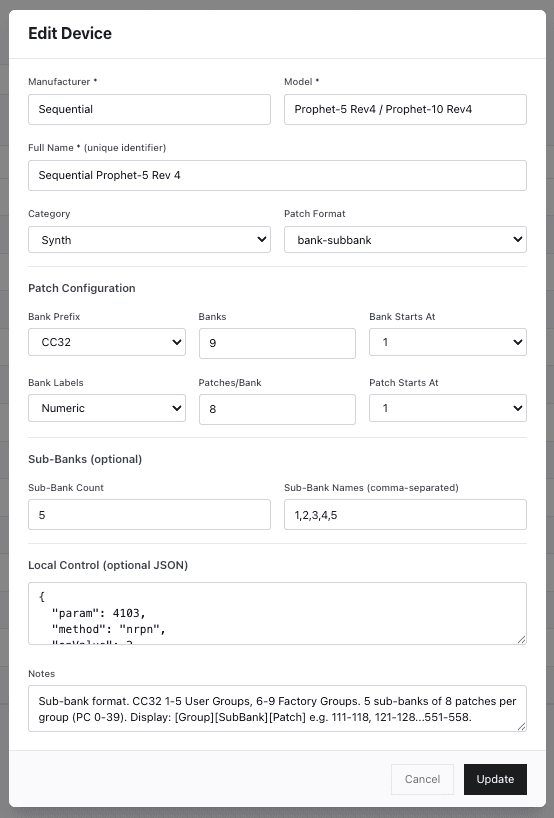
Our Internal Preset Database Manager
Understanding the Fields
When you set a device to Custom and expand the advanced settings, you will see the configuration options. Here is what each one does.
Format
How the synth organises its patches. There are five options:
- List — Simple program changes only, no banks. Patches are a flat numbered list.
- Bank + Patch — The most common format. A bank select CC is sent followed by a program change number.
- Bank (Auto) + Patch — Same as Bank + Patch but Midivex automatically sends the bank select message before every program change.
- Bank (Sub Bank) + Patch — Adds another grouping level for synths that organise patches into groups and sub-groups, like the Prophet Rev 4.
- Bank + Tens — Banks are derived from the tens digit of the patch number. Used by some older hardware where patch 23 means bank 2, patch 3.
Prefix
The MIDI CC number used for bank select. Almost always CC32 (Bank Select LSB), though some older devices use CC0 (Bank Select MSB) or other CC numbers. Check your synth manual.
Labels
How banks are displayed. Numeric (1, 2..) or alphabetic (A, B..). Some synths like the Hydrasynth use letter-based bank names while others use numbers.
Banks & Per Bank
The number of banks and the number of patches (program changes) per bank. For example, a synth with 16 banks of 16 patches would have Banks = 16 and Per Bank = 16.
Bank At & Patch At
Whether bank and patch counting begins at 0 or 1. Most synths start at 1, but some older hardware counts from 0. This affects the MIDI values that Midivex sends.
Sub Banks & Sub Names (optional)
Only used with the Bank+Sub-bank format. Defines how many sub-groups exist within each bank. The Prophet Rev 4, for example, has 5 sub-banks within each of its 9 groups.
Local On/Off (database only)
Some synths support a CC or NRPN message to toggle local control on or off remotely. When we know these parameters, we add them to the preset in our database so Midivex can send the correct message automatically. This is not configurable in the app itself as it requires specific MIDI implementation knowledge for each device. If your synth supports it, it will just work once the preset is in the database.
Example: Moog Sub 37
Bank (Auto) + Patch
Moog Sub 37 — 16 banks x 16 patches per bank, CC32
The Moog Sub 37 uses a Bank (Auto) + Patch format with CC32 for bank selection. It has 16 banks of 16 patches each, giving 256 patches total. The preset has been auto-detected from the database as “Sub 37 / Subsequent”.
The Bank (Auto) format means Midivex automatically sends the correct bank select CC message before each program change. Banks and patches both start at 1, and the numeric label style (1, 2...) is used for bank names.
Example: Sequential Take 5
Bank + Patch with Sub-Banks
Take 5 — 32 banks x 16 patches per bank, 2 sub-banks (U, F)
The Take 5 uses Bank + Patch format with CC32, 32 banks, and 16 patches per bank. It also uses 2 sub-banks named U and F, which represent User and Factory patch groups.
Notice the “What device is this?” dropdown on the right. When Midivex detects a matching preset in the database, it automatically suggests it. Here it has matched “Take 5” and all settings are filled in. If your device appears in this dropdown, select it and you are done. Custom mode is only needed when no preset match exists.
Example: ASM Hydrasynth
Bank + Patch with Alphabetic Labels
Hydrasynth Explorer — 5 banks x 128 patches, CC32, A/B bank labels
The Hydrasynth Explorer uses Bank + Patch format with CC32, but differs in two ways. First, it has a different bank and patch layout: 5 banks with 128 patches in each, for 640 patches total. Second, the bank labels are alphabetic (A, B..) instead of numeric.
Setting the Labels to “A, B..” tells Midivex to display banks as letters rather than numbers. Patches start at 1 because the Hydrasynth numbers its patches starting from 1, not 0. The preset has been auto-detected as “Hydrasynth (Keys)” from the database.
Example: Sequential Prophet Rev 4
Bank+Sub-bank (Advanced)
Prophet Rev 4 — 9 groups, 5 sub-banks, 8 patches per bank
The Prophet Rev 4 is the most complex example because it uses the Bank (Sub Bank) format. Instead of a flat list of banks and patches, it adds a grouping layer. There are 9 banks (groups), each containing 5 sub-banks (named 1, 2, 3, 4, 5), and each sub-bank holds 8 patches.
The display format becomes [Group][SubBank][Patch]. For example, patch 111 is Group 1, Sub-bank 1, Patch 1. Patch 128 is Group 1, Sub-bank 2, Patch 8. This continues up through 958 (Group 9, Sub-bank 5, Patch 8). Banks 1-5 are User Groups and 6-9 are Factory Groups, each with 5 sub-banks of 8 patches.
If your synth uses a similar grouped structure, set the format to Bank (Sub Bank) and configure the sub-bank count and names. This is less common but essential for synths that organise their sounds this way.
Tips
Check your manual. Every synth includes a MIDI implementation chart, usually in the back of the manual or on the manufacturer website. Look for Bank Select, Program Change, and the number of patches per bank.
Simple devices. If your device only responds to basic program changes with no bank switching, set the Format to Bank+PC with Bank max at 0. Midivex will send only program change messages.
The database keeps growing. We are regularly adding more synth presets to the database. Once your synth is added, the preset will automatically sync to your Midivex app and you can switch from Custom to the built-in preset.
Test as you go. After configuring a custom device, try selecting a few patches in the Patches panel and verify that the correct sounds load on your synth. If the wrong patch loads, double-check the bank prefix, starting values, and whether continuous banks should be on or off.